
Familiar tasks.
A clearer interface.
GPSPositions has been renewed. Find your devices, previous routes and settings in the new interface.
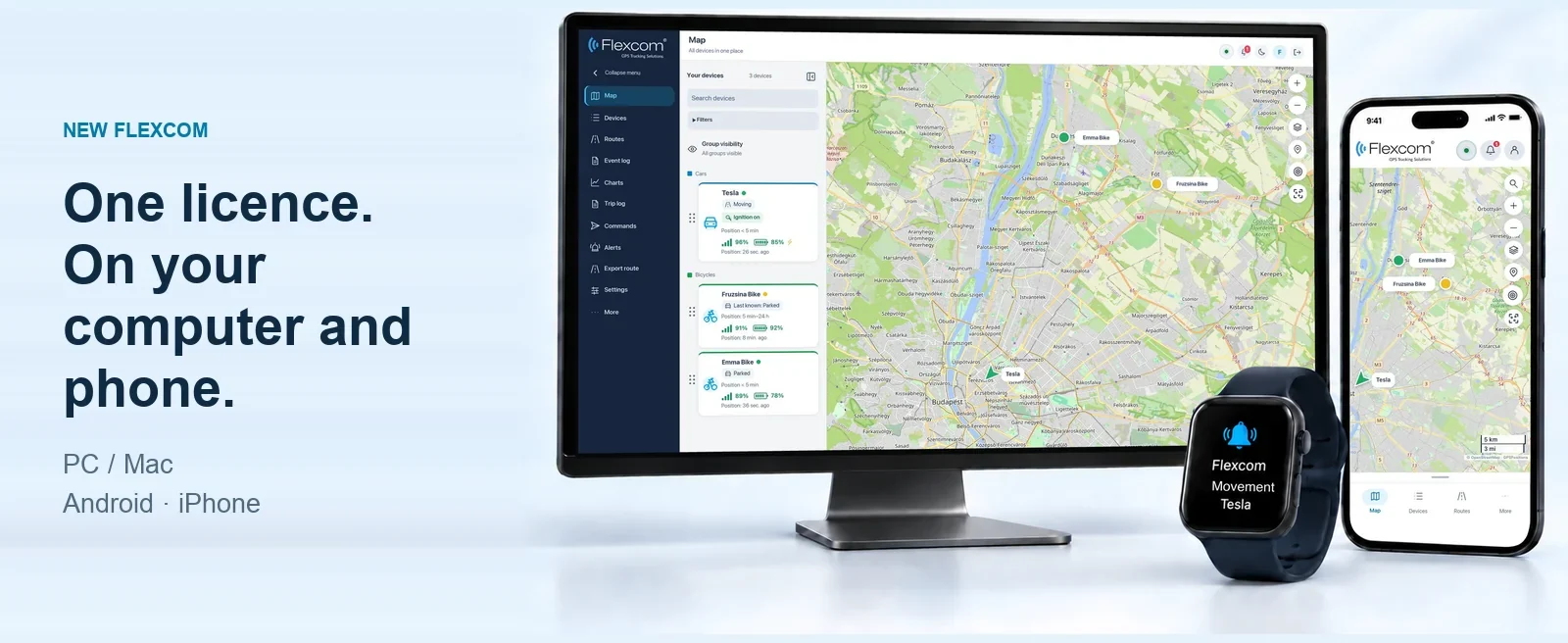
More space for the map
A more compact menu, a tidy device list and easier-to-read control buttons.
Designed for phone as well
Quick access to the functions you use every day from the bottom navigation.
Help where you need it
Optional walkthroughs, topic-based descriptions and short video guides.
THE FULL WALKTHROUGH
10 topics, every important step.
Choose a function: for each one, you will find a pictorial summary and computer and phone videos.
The available actions are determined by the device, the licence and your permissions.
01 / ORIENTATION
Your devices on one map.
The device list, name labels and freshness indicators help you find your way around. With a search, you can find the device and then open its detailed data sheet.
- Search by name and filter by group
- Last known position and its time
- Collapsible menu, more space for the map
02 / ORGANISATION
Clear device list with custom groups.
Give your devices easy-to-recognise names and organise them by vehicle, family member or task, for example. The colour of the groups and the order of the devices help with orientation on the map and in the list.
- Create groups with a name and colour
- Change a device name and group assignment
- Set the order of devices and groups
03 / SEARCH HISTORY
The full history of a journey.
Select a device and a time period, then review the route travelled. In addition to the list of driving and stopping periods, you can also find on the map where the vehicle stopped and for how long.
- Query with a start and end time
- Summary of distance, duration and stops
- P markers and detailed stop information
04 / MEASUREMENT DATA
See how the values change.
On the chart, you can review how speed changed, for example, during the selected period. By moving to a measurement point, you can read the value and the time, then narrow the section being examined. The available measurements depend on the device and the data received.
- Select a device, measurement and time period
- Overview of measurement points and changes over time
- Download data to a CSV file
05 / PLACES AND AREAS
Mark the important places.
Save your sites and other frequently used places on the map. You can add points, circular areas or freehand-drawn areas, then organise them into groups. By switching visibility on or off, you can adapt the map to the current task.
- Set the place name, description and group
- Edit points and area boundaries
- Show and hide saved places on the map
06 / NOTIFICATIONS
Be informed about important events.
Set when and to whom the system should send notifications. Supported alerts may include movement or leaving a defined area, for example. The available types and channels are determined by the device, the service and your permissions.
- Select device and alert type
- Specify conditions, periods and recipients
- An introduction to e-mail, SMS and app push notifications
You can receive push notifications on both Android and iPhone. Enable notifications for the app in your phone settings.
07 / DEVICE OPERATIONS
Send a command to the device.
With the commands available for the device, for example, you can request position or status data. Before sending, check the selected device and the sending method. A successful send does not necessarily mean that the device has carried out the command.
- Select the commands supported by the device
- Send commands over the internet or by SMS, where available
- Check your SMS credit balance and the sending status
08 / REPORTS AND DELIVERY
Journey data in a report.
In the trip report, you can view journey segments and stops, times, locations and distance travelled in sequence. You can also review the result on the screen or download it. The demonstration also guides you through setting up one-off and regular e-mail sending.
- Specify device and query period
- Trip and stop data, with Excel and PDF export
- Set recipients and automatic sending times
For automatic sending, specify the recipients, the period and the sending schedule.
09 / EVENTS AND FEEDBACK
Find out what happened.
In the event log, you can review alerts, command feedback and account events together. Filter by device, period and event type, then open the details of the entry you are looking for.
- Filter by device, date and event type
- Open detailed event data
- Acknowledge processed alerts and export results
10 / ACCESS RIGHTS
Access as you permit it.
Specify which devices and data the other user may see, and which actions they may perform. You can also set an expiry date and retrospective data access for the shared access. You can switch between your own and shared devices using the profile button in the top right corner.
- Select shared devices and permissions
- Set expiry and available history
- Quickly switch between your own and shared profiles
IPHONE AND ANDROID
The same system.
Designed for your phone.
Check your devices, query a route, or review alerts. The mobile view is easy to use on a smaller screen.
The images show the new mobile app.
Mobile app and push notifications on iPhoneLearn the steps.
Use it with confidence.
Choose a topic and see the task steps on your own device.
Browse the guides